(A video walkthrough of this exact process is linked at the bottom of this post.)
1. Pull the CS from every module in the car
Before opening the AKL Synch tool, you need each module's CS. This example covers a Golf with a DQ250 MQB gearbox and a Simos 18.1 engine ECU.
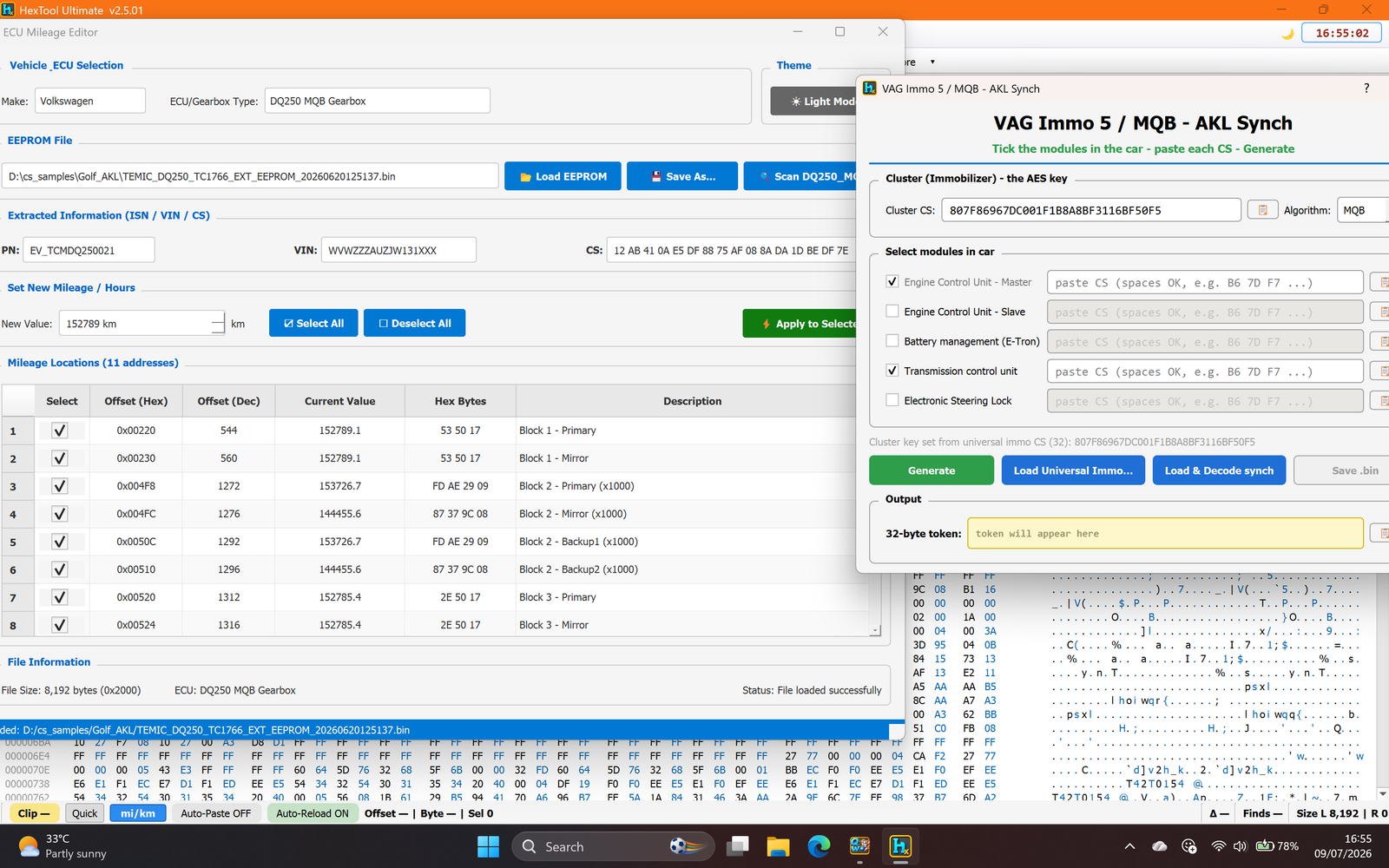
Gearbox (DQ250): load its EEPROM dump into the ECU Mileage Editor — picking Volkswagen → DQ250 MQB Gearbox as the Vehicle/ECU type reads out the module's PN, VIN, and CS automatically from the dump.
Engine ECU (Simos 18.1): same idea, but picking Simos 18.1 IMMO (VIN / CS / MAC / status) as the ECU type — this reads the ECU's VIN, CS, MAC, and FAZIT string straight out of the flash dump.
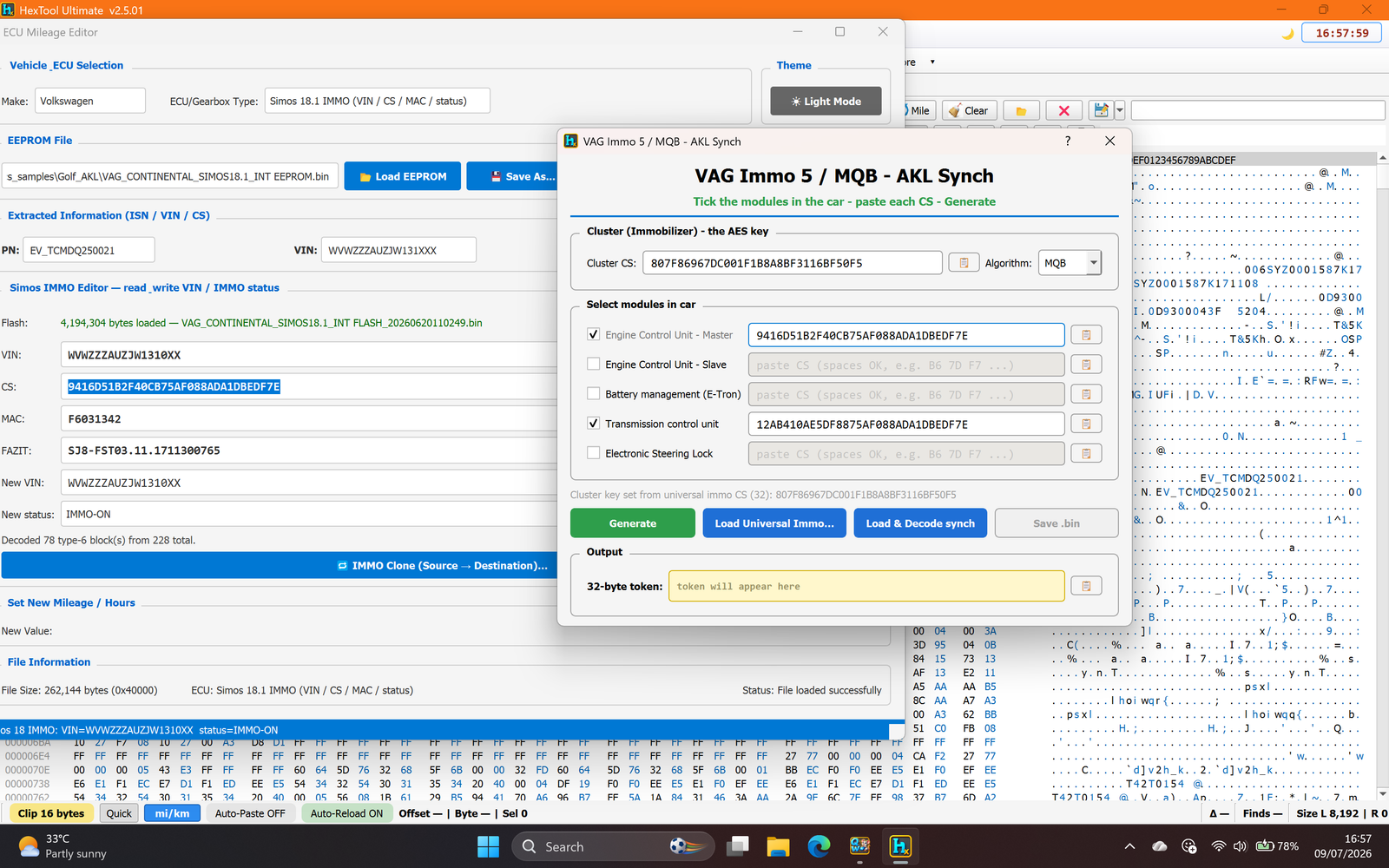
Do this for every module that's actually fitted to the car — the AKL Synch tool only needs a CS for the modules you tick.
2. Open the AKL Synch tool and set the cluster key
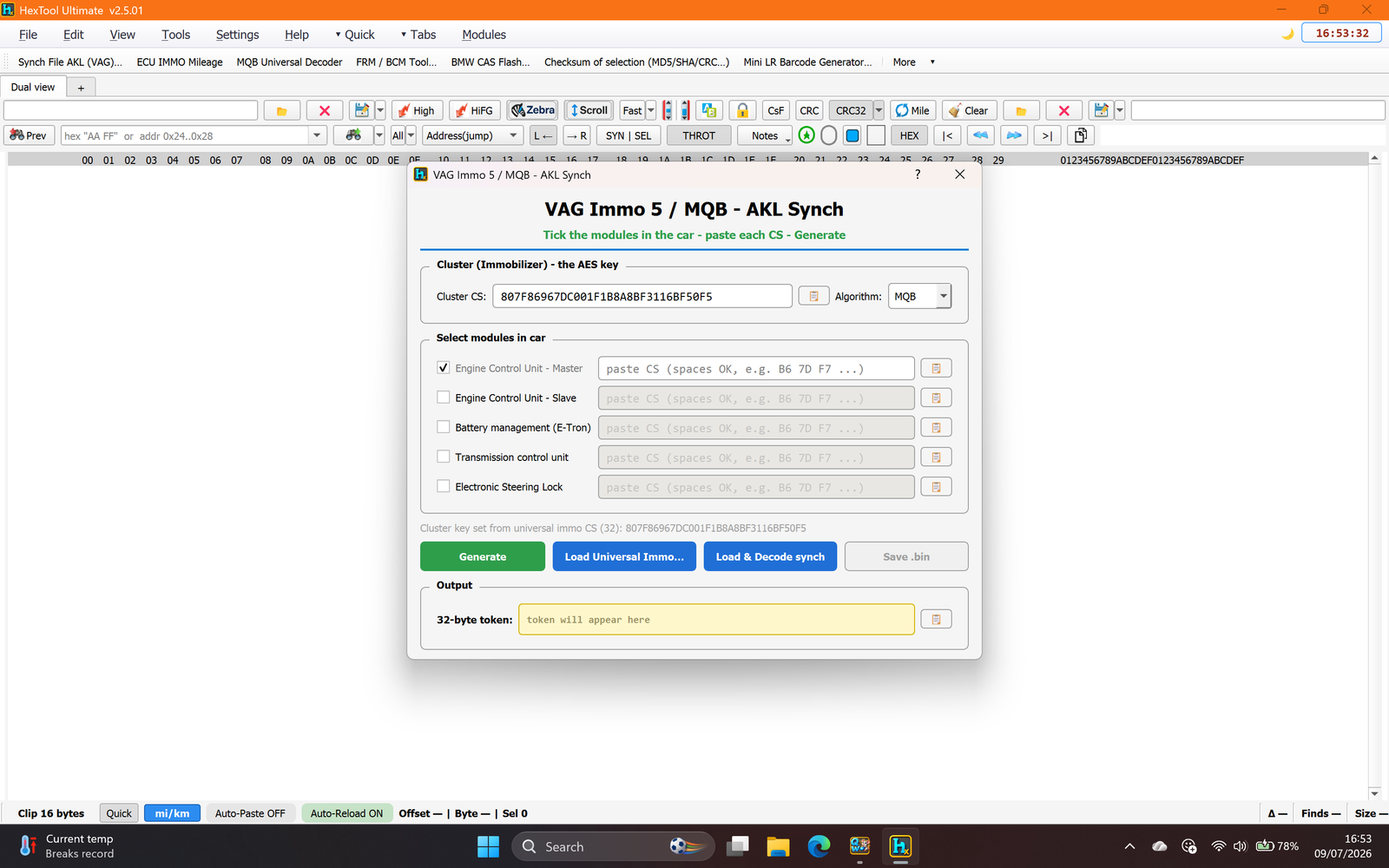
Tools → VAG IMMO → Synch File AKL (VAG)… opens VAG Immo 5 / MQB – AKL Synch. Paste the cluster's own AES key into Cluster CS, and set Algorithm to MQB (Immo5 vehicles use the same AES base, MQB adds a wordswap on top — the algorithm dropdown handles that difference for you).
3. Tick the modules and paste their CS
In Select modules in car, tick each module that's actually present — here, Engine Control Unit – Master and Transmission control unit — and paste the CS you pulled from each one's dump in step 1 into its box.
Leave every module that isn't fitted to the car unticked. Only the modules you tick get included in the generated token, and a module CS pasted into the wrong slot will produce a token the car will reject.
4. Confirm and generate
Pressing Generate shows a confirmation dialog summarizing exactly what you're about to build — the algorithm, the cluster CS, and each module's CS against its name — with a pointed warning:
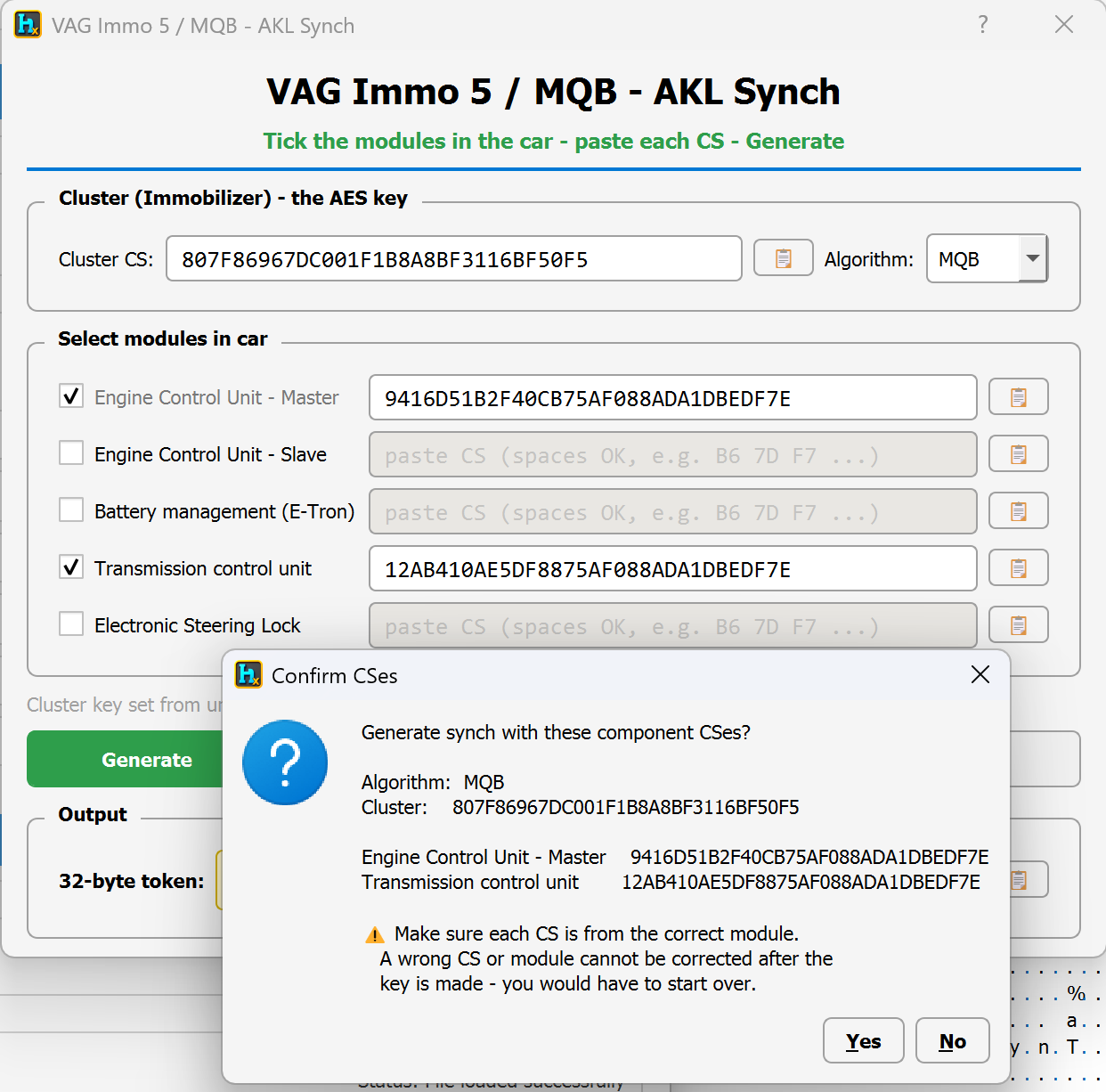
Double-check every value against what you actually read out of each module's dump before pressing Yes — this is the one step in the whole process where a mistake is expensive to undo.
5. Get the token
Once confirmed, the 32-byte token appears in the Output box, ready to copy out and use for the key-making step on your programmer.
Why this matters
Immo5/MQB clusters don't trust a new key based on the cluster alone — every linked module has to agree that the key belongs to this car, and that agreement is exactly what the synch token encodes. Skipping a module, or mixing up which CS belongs to which module, produces a token that looks valid but won't actually authenticate against the real hardware — which is why the confirmation step exists before anything is generated.
Watch it in action
A full video walkthrough of this process:
Watch on YouTubeThe AKL Synch generator is part of the VAG IMMO suite in HexTool Full & Ultimate. Full step-by-step docs live in the Help section.
Open the VAG Sync guide